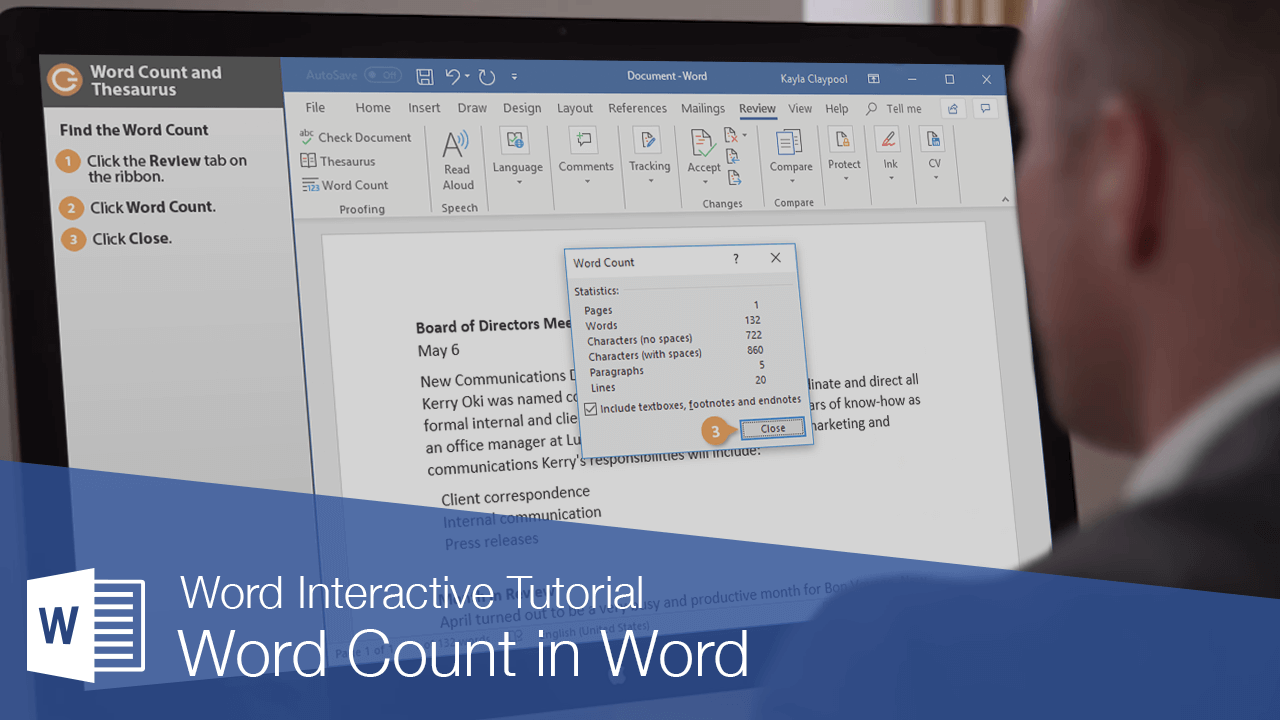
Find the Word Count
The Word Count feature is useful if you have a writing assignment that is limited to a specific number of words.
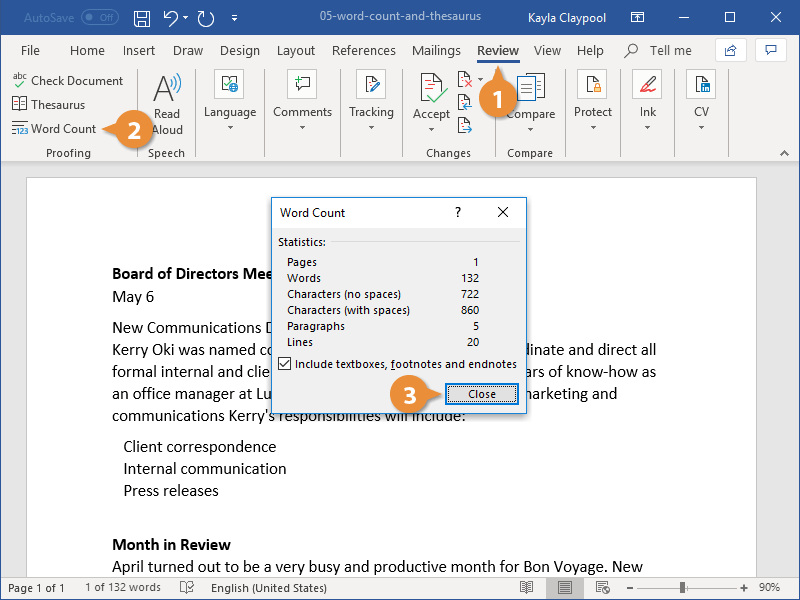
The word count is always displayed in the status bar at the bottom of the screen, next to the page number. If you need to see a more detailed count of words, open the Word Count dialog box.
- Click the Review tab on the ribbon.
- Click the Word Count button in the Proofing group.
You can also click the word count in the status bar to open the Word Count dialog box.
Here you can see not only the word count, but also a character count (both with and without spaces), a paragraph count, and a line count.
- Click Close when you're done.
The Word Count dialog box closes.
Find Text
You can use the Navigation pane to search for specific words or phrases in a document.
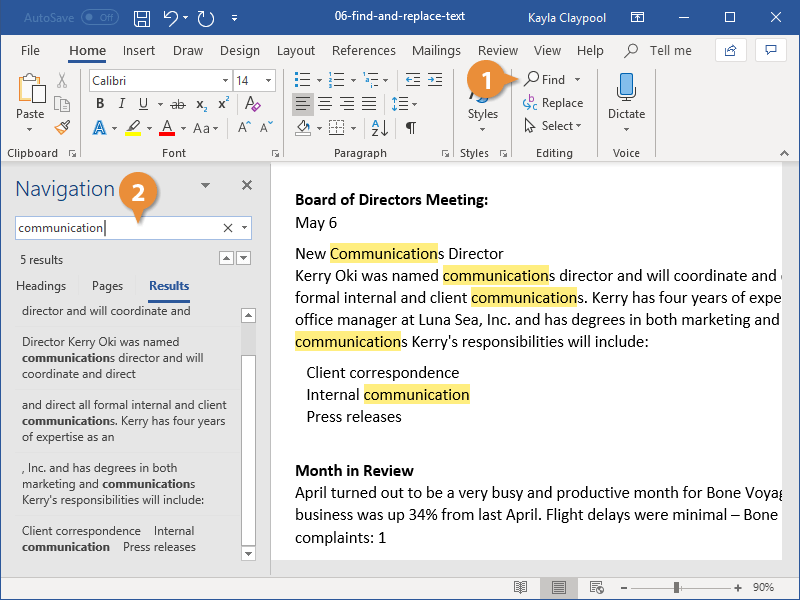
- Click Find on the Home tab.
- Click in the Search document box in the Navigation pane and type the text you want to find.
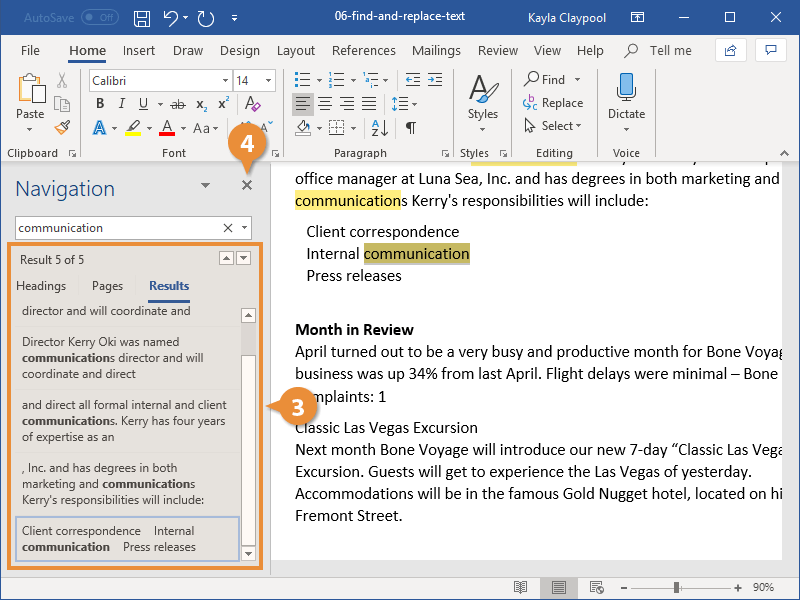
- Click a search result to jump to it in the document.
- Click Close when you're finished.
The Navigation pane appears on the left, displaying the Results view.
Press Ctrl + F.
The search runs automatically. Results are highlighted in the document, and the Navigation pane lists all instances of the word.
You can use the arrows under the search box to jump to the Previous or Next search result.
The Navigation pane closes.
Advanced Find
To search your documents for more specific items, such as certain capitalization or only whole words, use Advanced Find.
- Click Find button list arrow.
- Select Advanced Find.
- Type the word you're looking for in the Find box.
By default, the Find and Replace dialog box only shows the basics—a search field. There are more options available if you expand the dialog box.
- Click the More button.
- Check the advanced criteria you want to use.
You can choose to exactly match the case or only search for whole words. You can also use wildcards, or ignore punctuation and spacing.
- Click Find Next.
Word navigates to and selects the next instance that fits the additional criteria.
- Click Close when you're done.
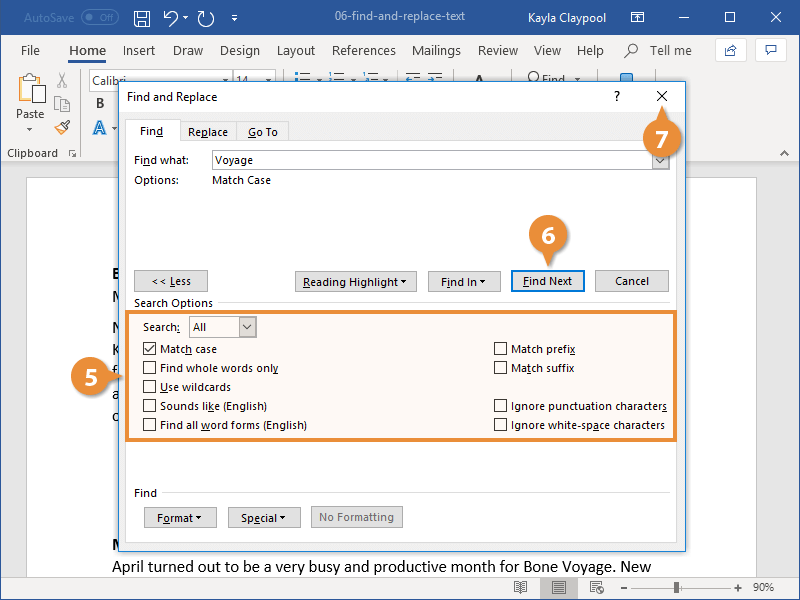
The Find and Replace dialog box opens.
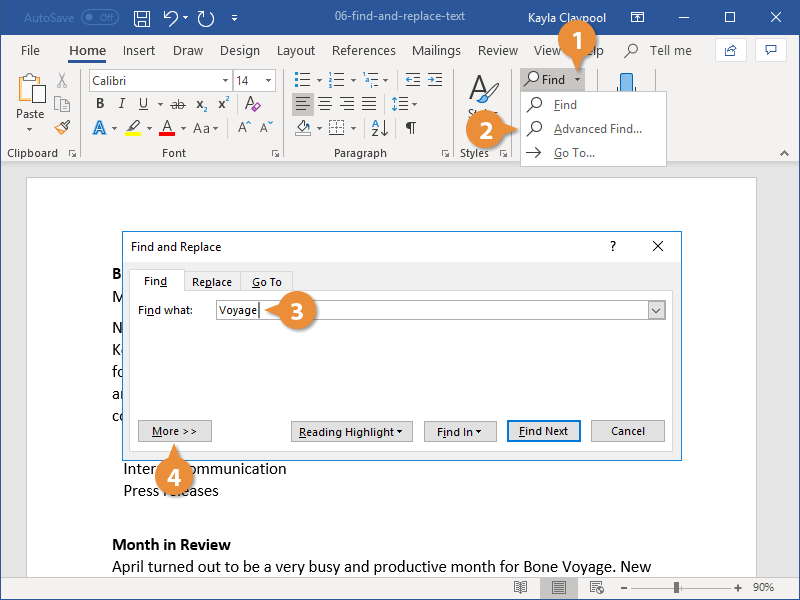
The advanced options here let you set some options on how to conduct the search.
The Find and Replace dialog box closes.
Replace Text
If you’ve spelled something incorrectly in multiple places, Word can fix them all with just a few steps.
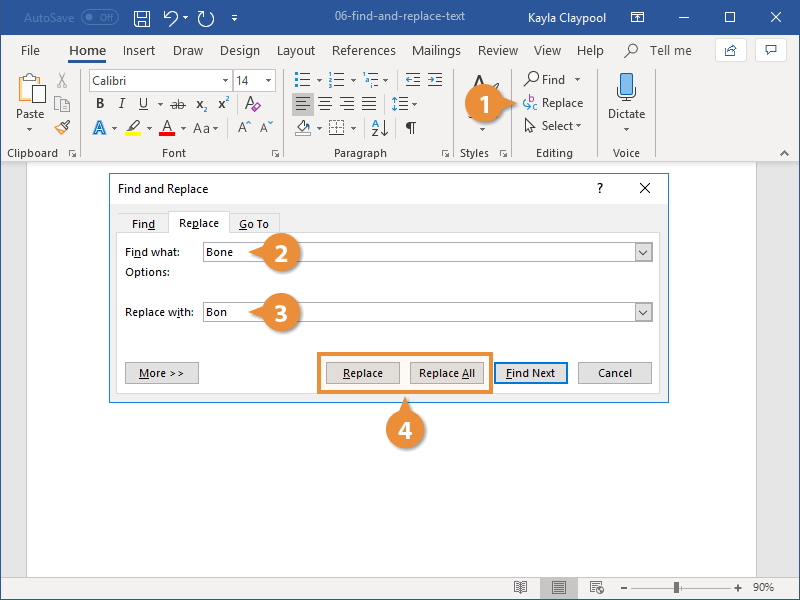
- Click Replace on the Home tab.
- Type the word you need to replace in the Find what text field.
- Type the word you need to replace in the Replace with text field.
- Select a replacement option.
- Replace: Replaces the first instance of the word. Keep clicking to fix them one at a time.
- Replace All: Fixes all instances of the word at once.
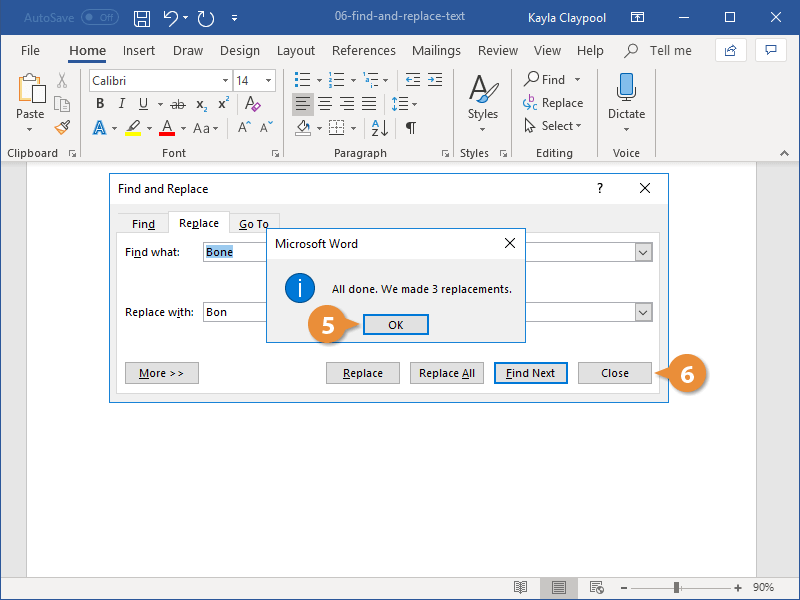
- Click OK.
- Click Close when you're done.
The Find and Replace dialog box opens to the Replace tab.
Once all the instances of the word have been replaced, a dialog box will pop up to let you know it’s complete.
The Find and Replace dialog box closes.