Documents with several pages often have information—such as the page number, the document’s title, or the date—located at the top or bottom of every page. Text that appears at the top of every page in a document is called a header, while text appearing at the bottom of every page is called a footer.
Use a Header or Footer
- Click the Insert tab.
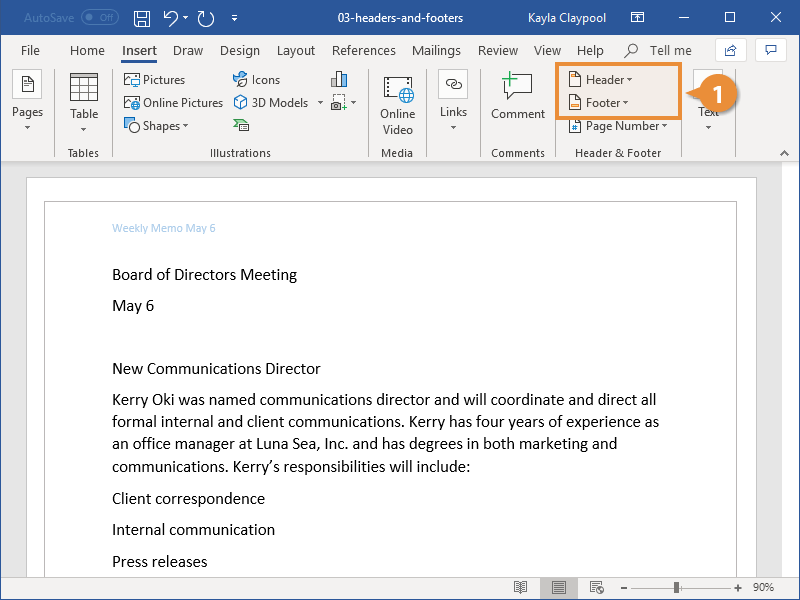
- Click the Header or Footer button.
- Select a built-in header or footer design.
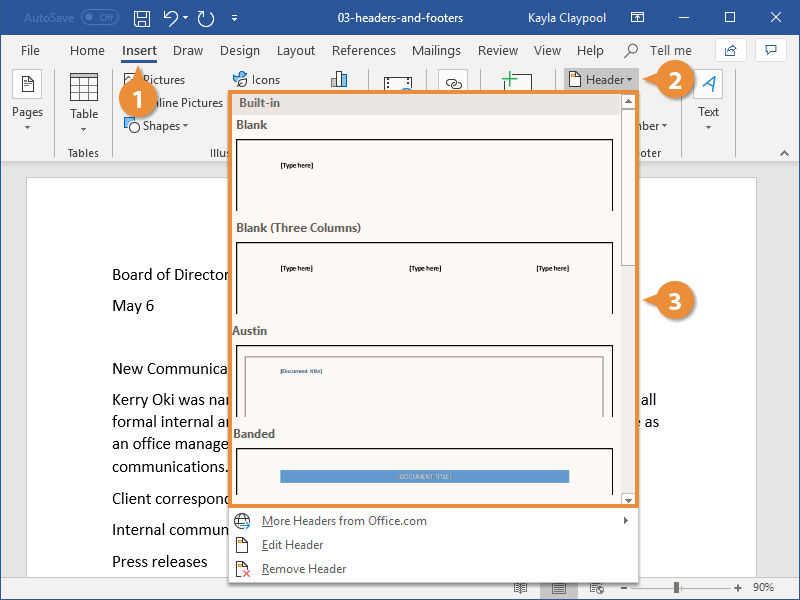
- Click the Close Header and Footer button when you're done.
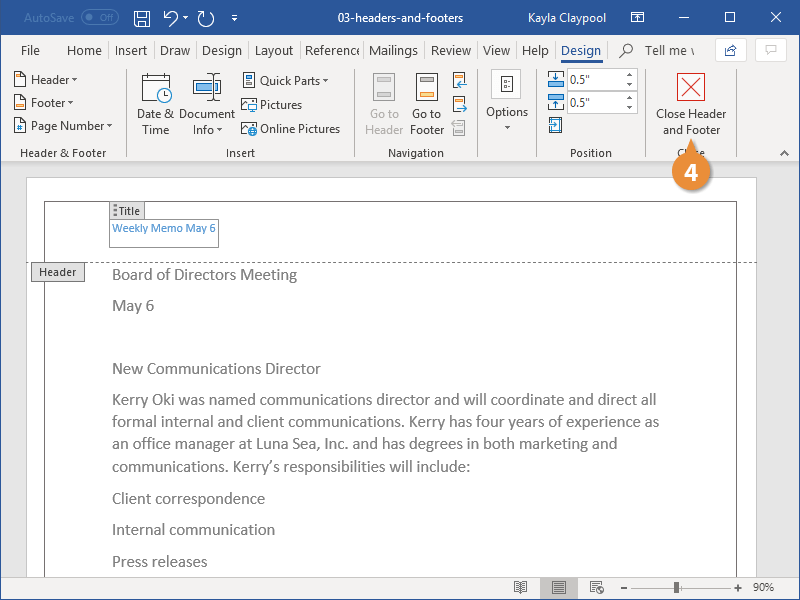
A list of built-in header or footer designs appears. Each option will include one or more placeholders for information such as document title, date, or page number.
Hover over a built-in header or footer option to view its attributes and a description of how it might be used best.
A new header or footer is inserted, and the Header and Footer Design tab also appears on the ribbon.
The Header and Footer Design tab closes, and the header and footer are set.
Remove a Header or Footer
Once you’ve added a header or footer, you can easily remove it if you find that it isn’t what you want.
- Click the Header or Footer button on the Insert tab.
- Select Remove Header or Remove Footer.
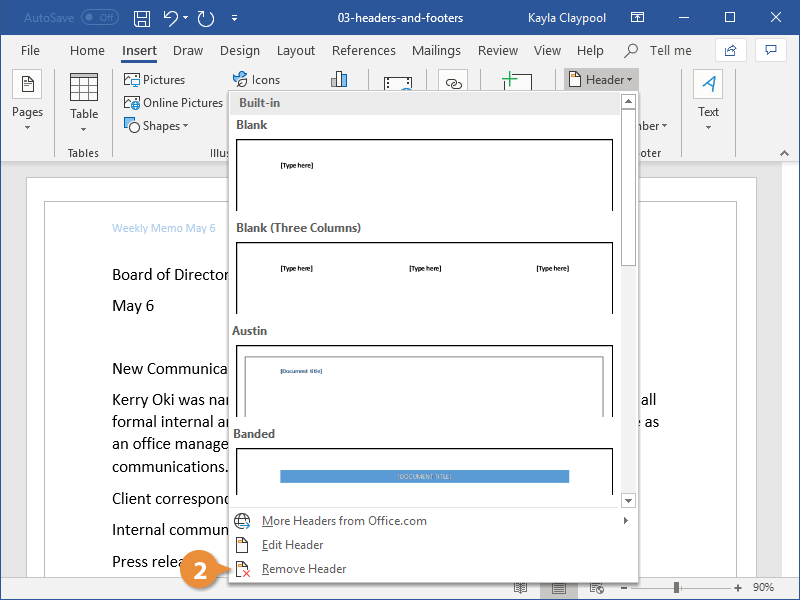
The header or footer is removed.
Create a Custom Header or Footer
Once you’ve added a header or footer, you can use the Header and Footer Design tab to customize its appearance. Or, if you’d prefer to start from scratch, you can customize the header or footer without using one of the built-in presets.
- Click the Header or Footer button on the Insert tab.
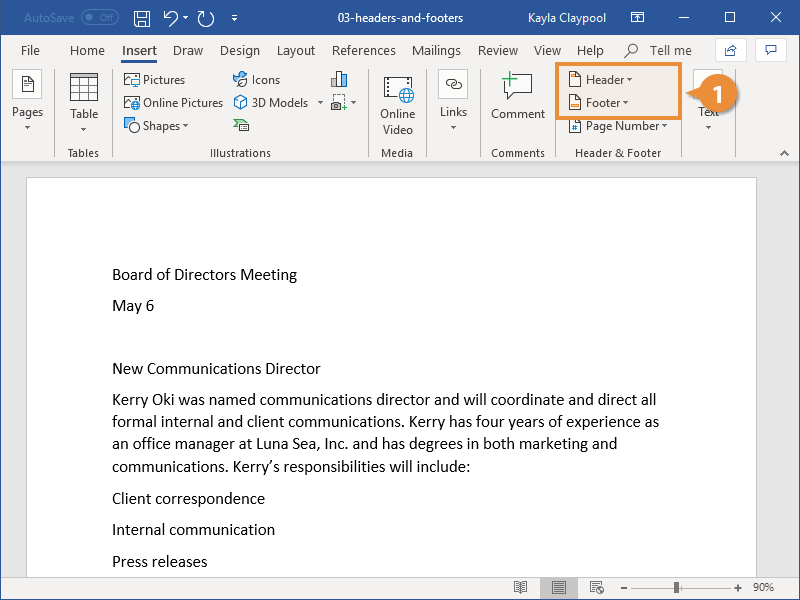
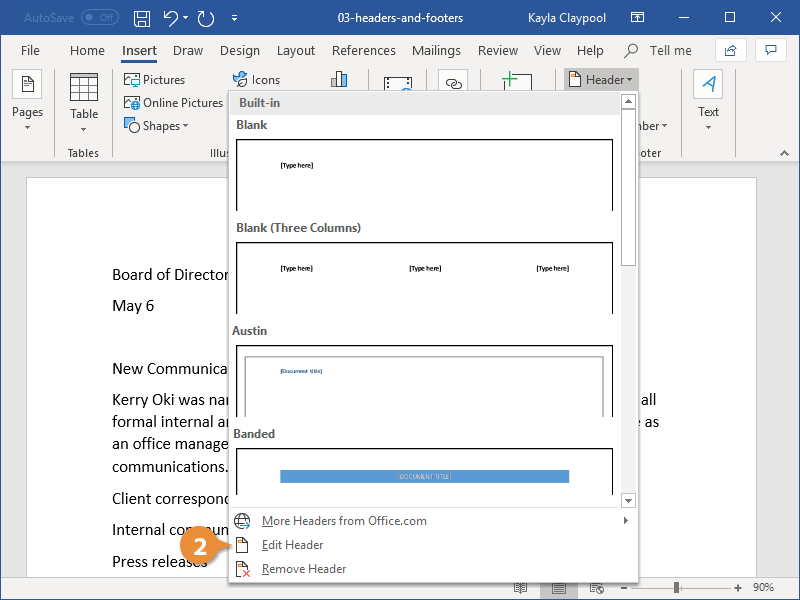
- Select Edit Header or Edit Footer.
- Make selections using the Header and Footer Design tab tools on the ribbon.
- Click Close Header and Footer when you're done.
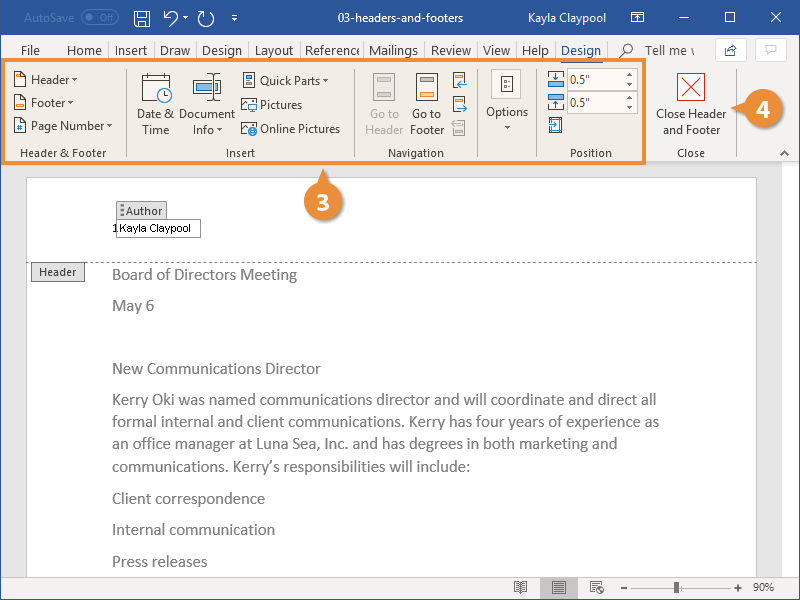
The Header and Footer Design tab appears, and you can now add text, graphics, and placeholders to the header or footer.
You can also display the Header and Footer Design tab and edit the header or footer by double-clicking in the top or bottom margins of the document, or by right-clicking in the top or bottom margins and selecting Edit Header or Edit Footer.
The Insert group contains options for inserting document info placeholders, which are fields that automatically fill in information, such as page number, the current date, the file name and path, or the author’s name.
In the Options group, you can also choose to use a different header or footer on the first page of a document, or to use different headers or footers on odd and even pages.
The custom header or footer is applied.
Add Page Numbers
- Click the Insert tab.
- Click the Page Number button.
Next, choose where you want the page number to appear. You can choose either the header or footer, in the side margins, or where the text cursor is currently placed.
- Select a part of the page.
There are plenty of built-in designs available, from plain numbers to more stylized numbers and shapes.
- Select a page number style.
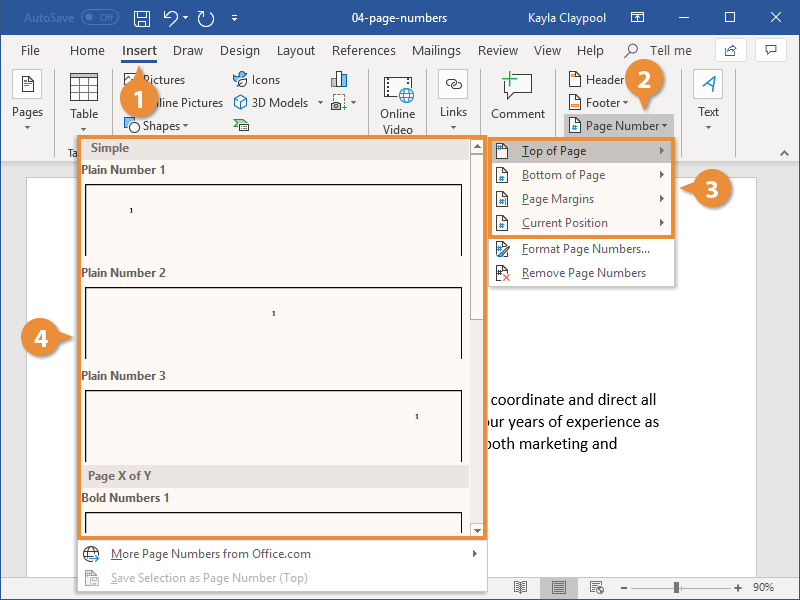
The page number is added as a new page header or footer. The page number will increment automatically for each page, while the other text and decoration will stay the same.
- Click the Close Header and Footer button.
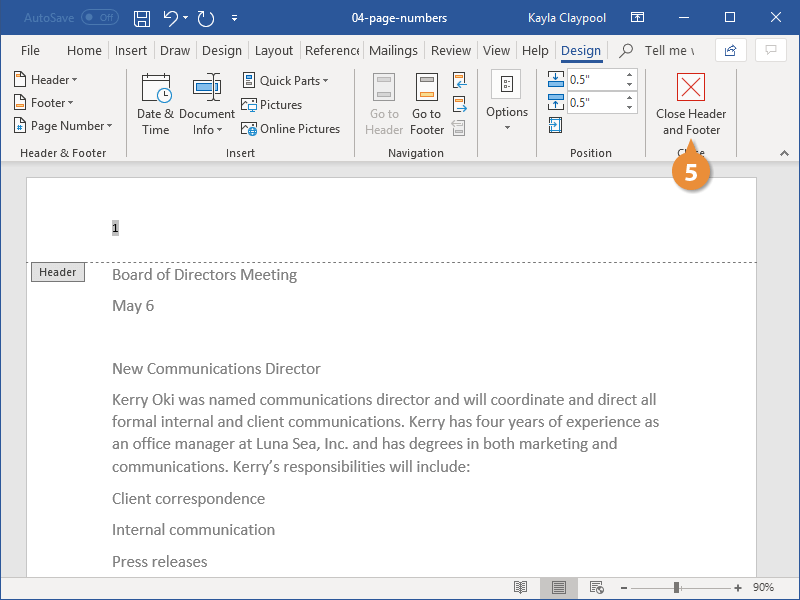
The page number is added.
Format Page Numbers
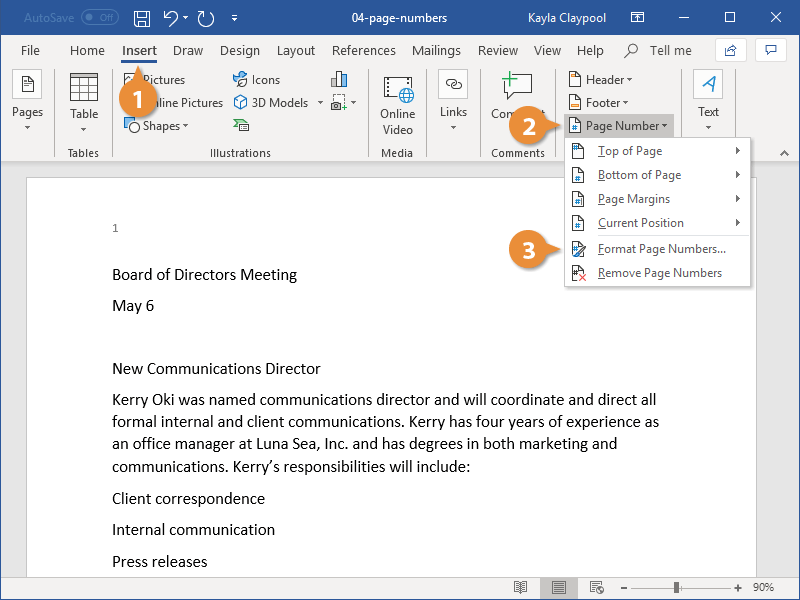
Once you’ve added page numbers, you can customize the number format, enable chapter numbers, and adjust how the numbering starts.
- Click the Insert tab.
- Click the Page Number button.
- Select Format Page Numbers.
- (Optional) Choose a number format.
In addition to numbers, you could also use letters or roman numerals.
- (Optional) Include chapter numbers.
If your document is set up with chapter numbers, you can have those appear with the page numbers.
- (Optional) Modify page numbering.
If the document you’re working on is a continuation of another document, you can also specify a number that the page numbers will start at.
- Click OK.
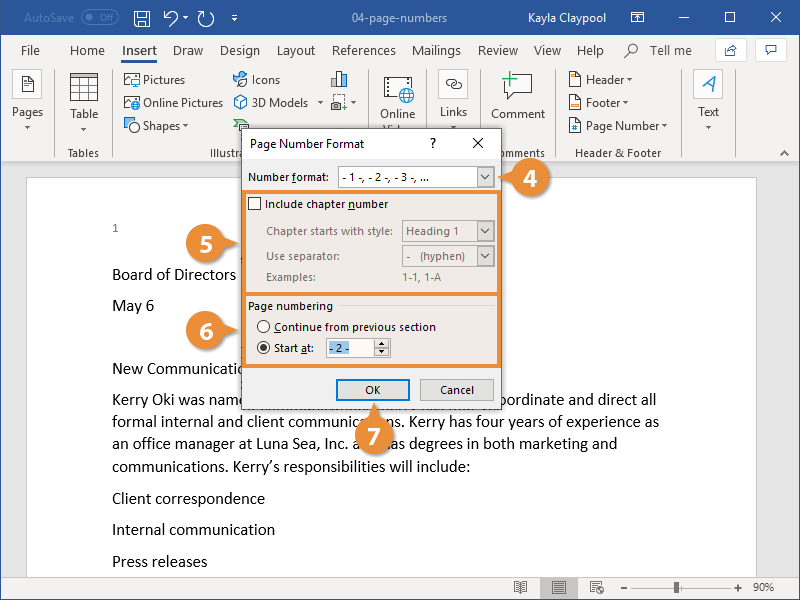
The Page Number Format dialog box opens, with a few ways to customize how page numbers appear.
The number format has changed.
Remove Page Numbers
If your document no longer needs page numbers, they're easy to remove.
- Click the Page Numbers button.
- Select Page Numbers button.
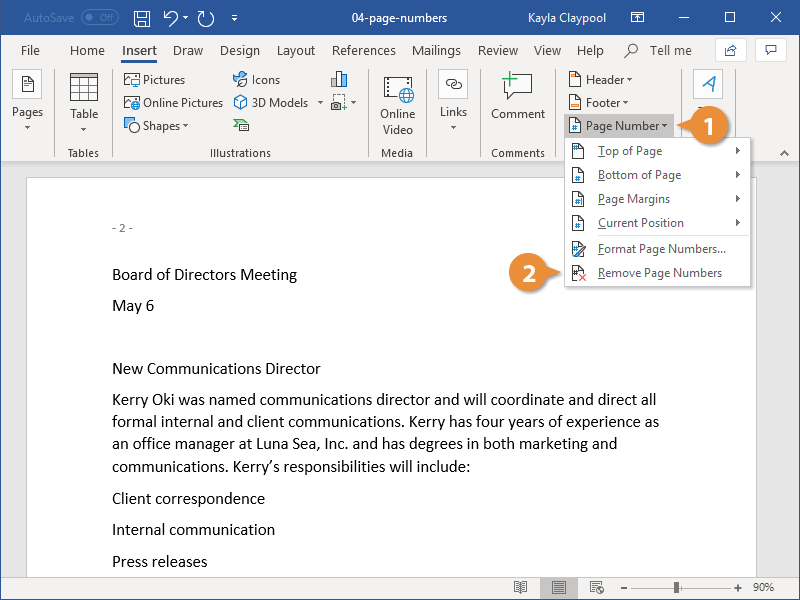
The page numbers are removed.
You can also remove page numbers manually by editing the header or footer to remove the page number placeholders.