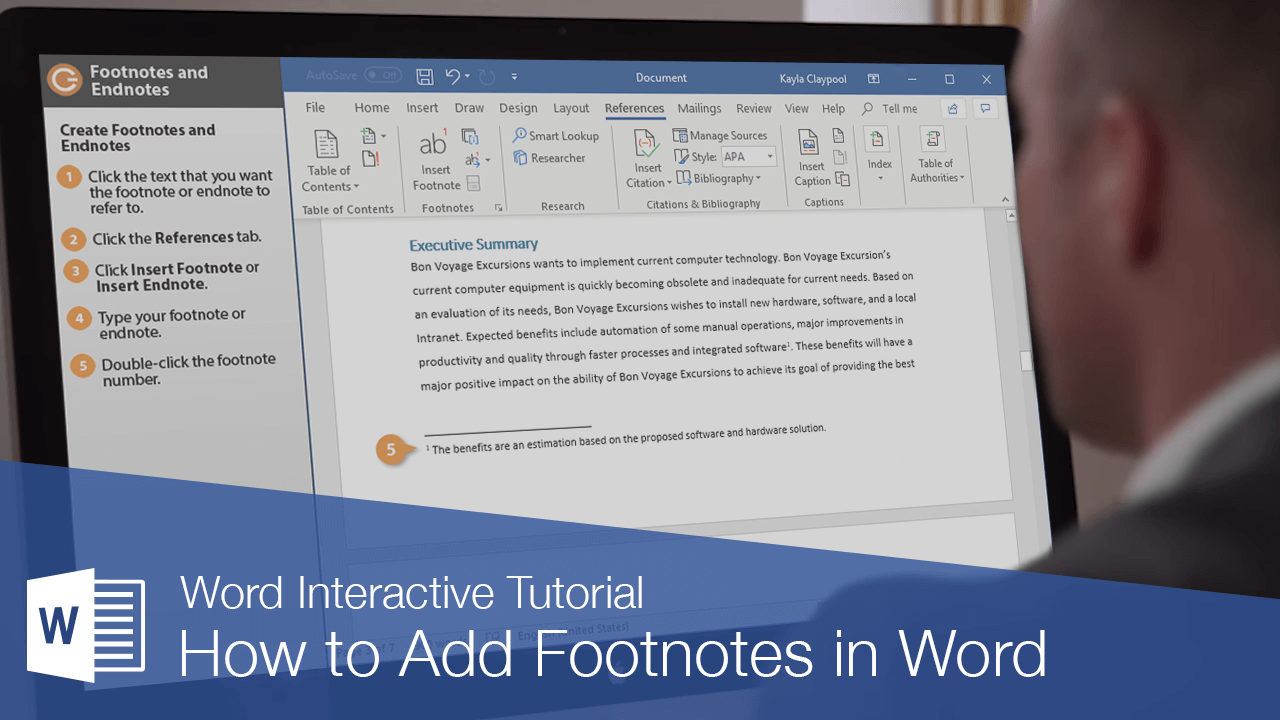
Footnotes and endnotes explain, comment on, or provide references for text in a document. Footnotes appear at the bottom, or the foot, of each page in a document, while endnotes appear at the end of a section or document. Other than that difference, they work the same way.
Footnotes and endnotes have two linked parts: the note reference mark (usually a number) and the corresponding footnote or endnote. Word automatically numbers footnote and endnote marks for you, so when you add, delete, or move notes, they are automatically renumbered.
Create Footnotes and Endnotes
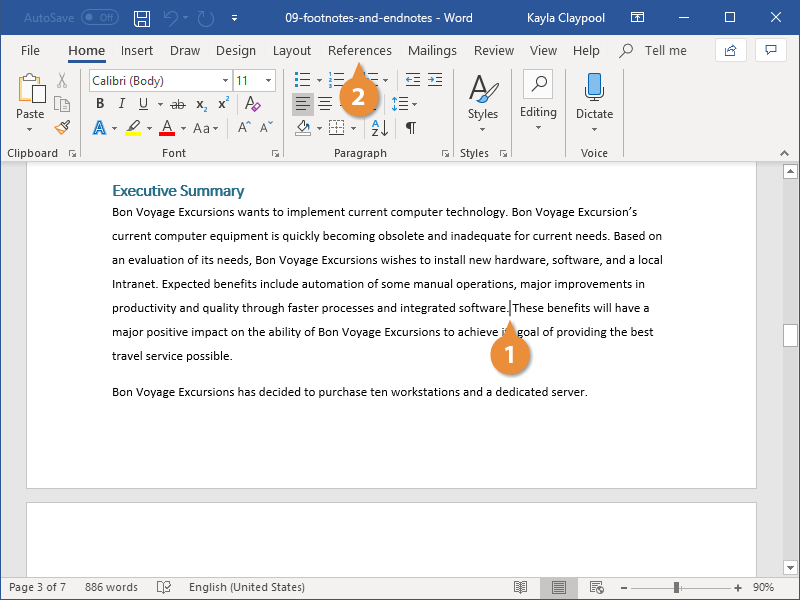
- Place your cursor where you want to insert the footnote or endnote.
- Click the References tab.
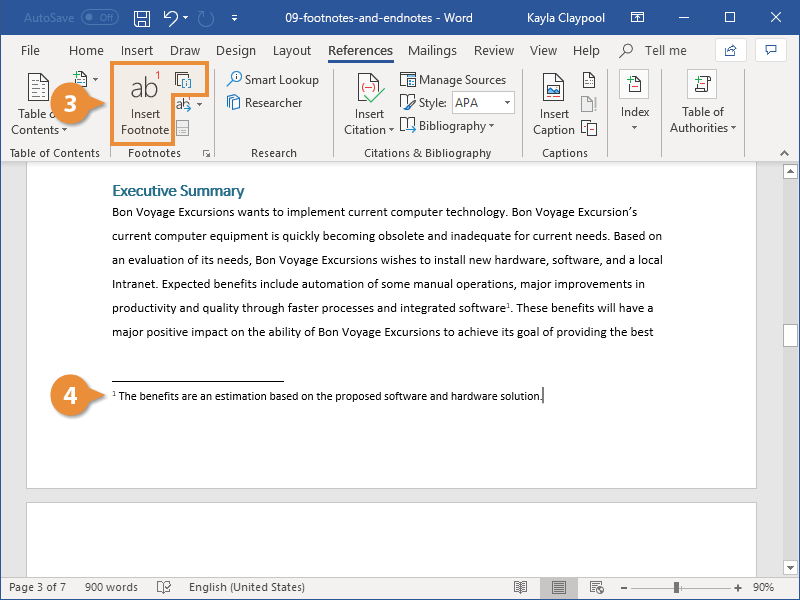
- Click the Insert Footnote or Insert Endnote button.
A reference number is placed in the text, and a new footnote or endnote is created. Your text cursor is moved to the footnote or endnote, so you can type out your reference.
- Type your footnote or endnote.
Modify Footnote and Endnote Properties
Once you’ve added footnotes and/or endnotes, you can customize the way they appear and behave.
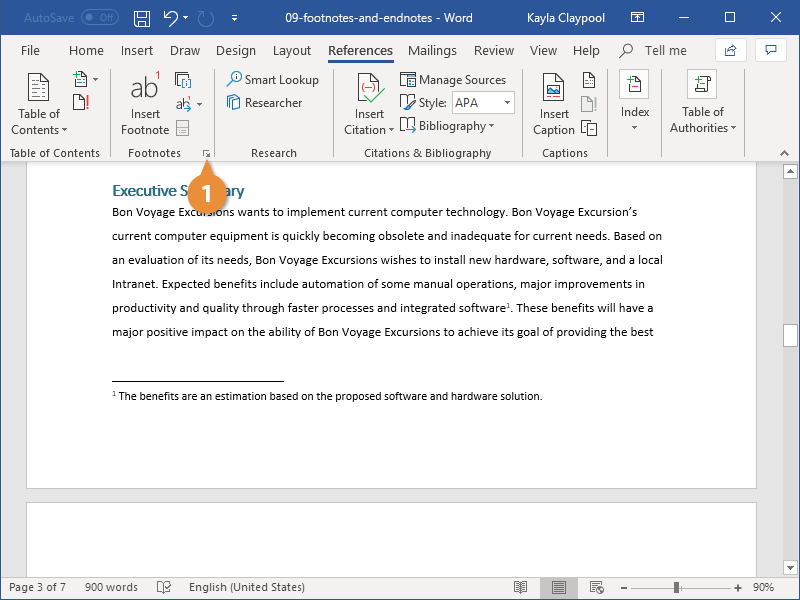
- Click the Footnotes group dialog box launcher on the References tab.
- Location: Select either Footnotes or Endnotes, and then click the Location list arrow and choose where the footnotes and endnotes appear. You can also click the Convert button to convert all footnotes to endnotes, or vice versa.
- Footnote layout: Select whether footnotes appear with the same column layout as body text or act independently.
- Format: Choose a number format or custom symbol to mark footnotes or endnotes, select a starting number, and control whether numbering restarts on every page or new section.
- Apply changes: Choose whether the options you’re applying affect the whole document or just the selected sections.
- Adjust the options the way you want.
- Click Apply.
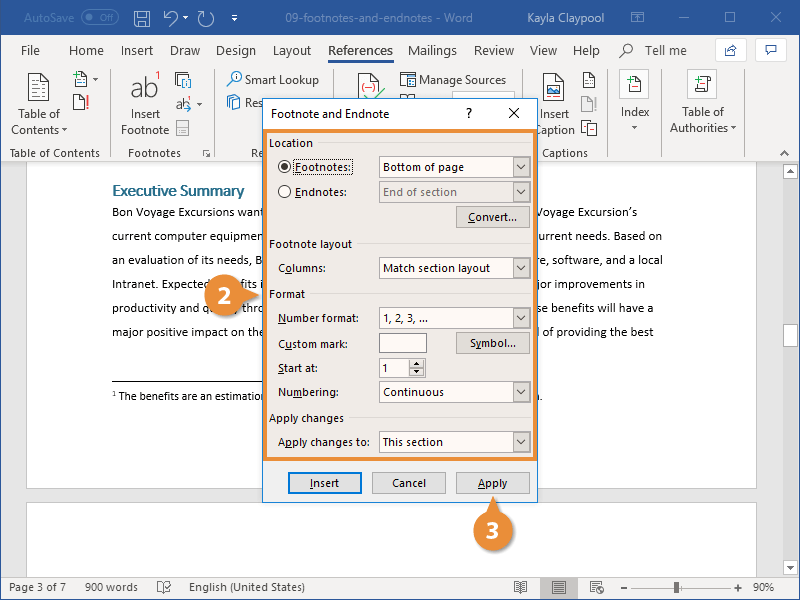
The Footnote and Endnote dialog box contains options to control how footnotes and endnotes appear.
The selected options are applied to footnotes or endnotes, in the selected sections or across the entire document.
Example: Footnotes and Endnotes

Exercise: Using Footnotes
Part 1 – Create the Document
1. Open Microsoft Word.2. Copy the following text exactly as shown below:
1. Open Microsoft Word.
The Role of Technology in Modern Education
Technology has greatly influenced the way people learn and teach. In the past, education depended mainly on printed materials and physical classrooms. However, with the introduction of computers and the internet, learning has become more flexible and accessible to people all over the world.
One of the earliest developments that led to modern online learning was the creation of ARPANET, the foundation of the internet. This network allowed information to be shared quickly between universities and research institutions.
Today, students can access entire libraries, lectures, and even degree programs online. Platforms such as Coursera, edX, and Khan Academy have transformed how people approach education.
Despite the benefits, technology in education also presents challenges such as digital distractions, unequal access, and misinformation. Teachers must learn to integrate technology effectively without reducing critical thinking skills.
Part 2 – Insert Footnotes
1. Insert Footnote command to add the following footnotes:
- After ARPANET: Advanced Research Projects Agency Network, developed in the late 1960s.
- After Khan Academy: Khan Academy is a non-profit organization offering free online courses for all ages.
- After misinformation: The spread of misinformation online is a major challenge for modern educators.