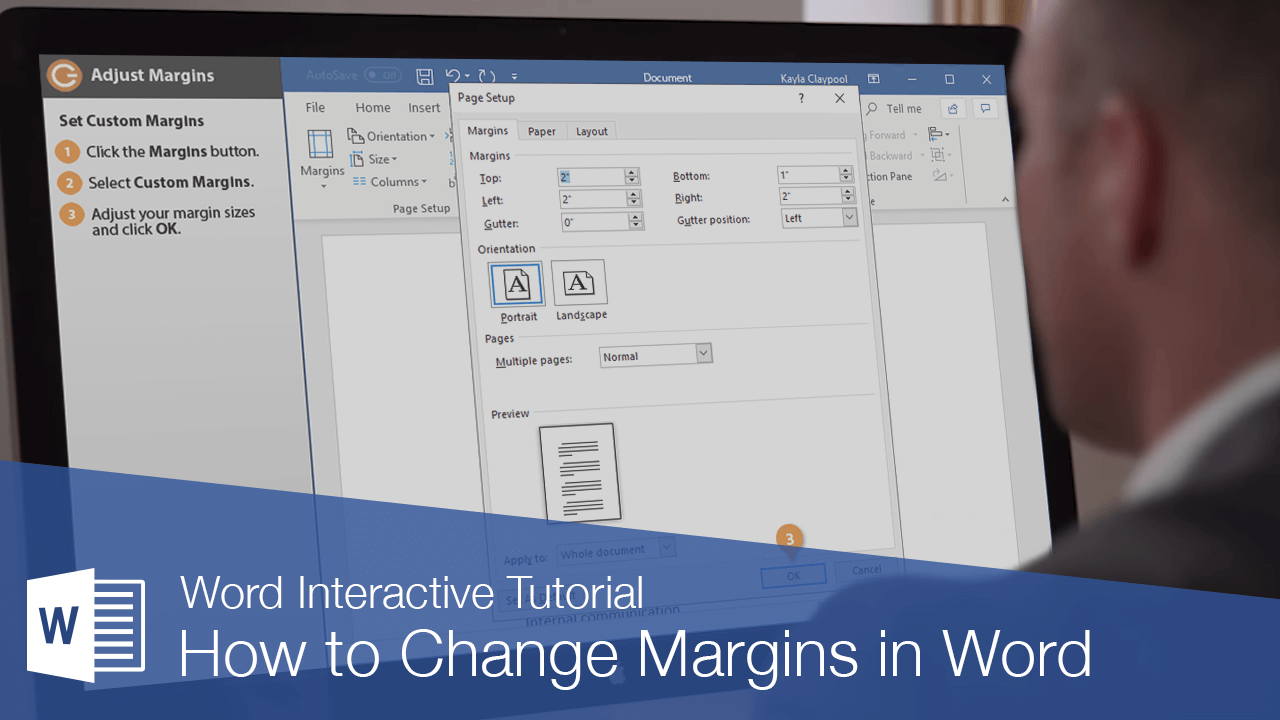
A margin is the empty space between a document’s contents and the edges of the page. Word’s default margins are 1 inch on each side of the page, but you can change the margins to accommodate the needs of your document.
Choose a Margin Size
Word includes several built-in margin settings that you can choose from.
- Click the Layout tab.
- Click Margins button.
- Select a new margin setting.
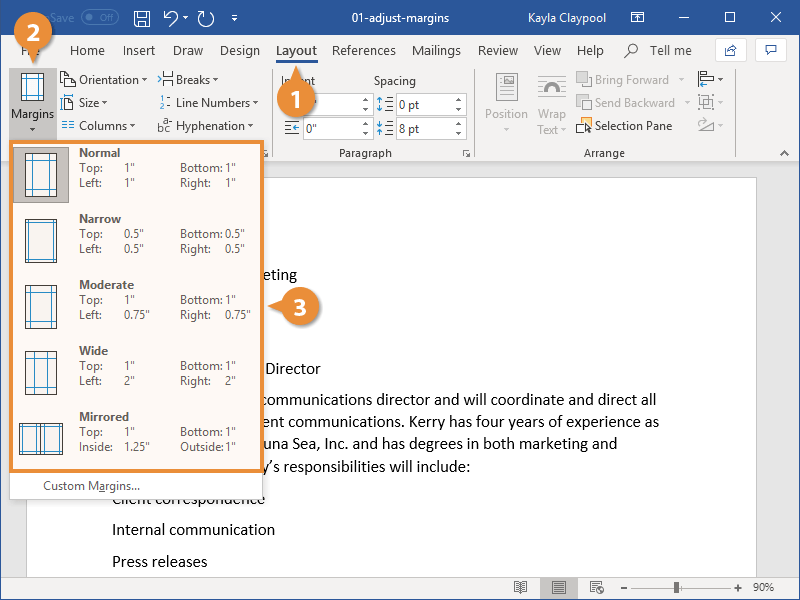
Word adjusts the size of the margins and automatically redistributes your content to fit.
Set Custom Margins
If the common margin settings don't meet your needs, you can create custom ones.
- Click Margins button on the Layout tab.
- Select Custom Margins.
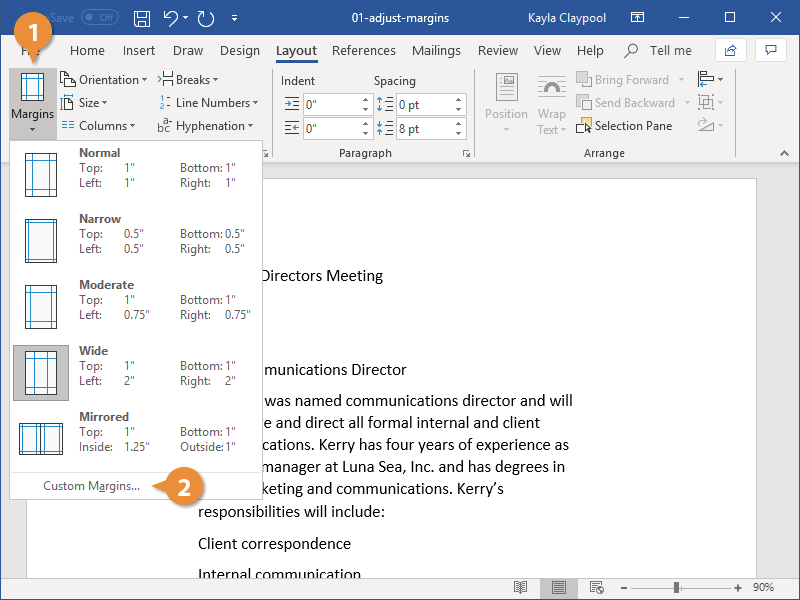
- Adjust your margin settings in the dialog box.
- Click OK.
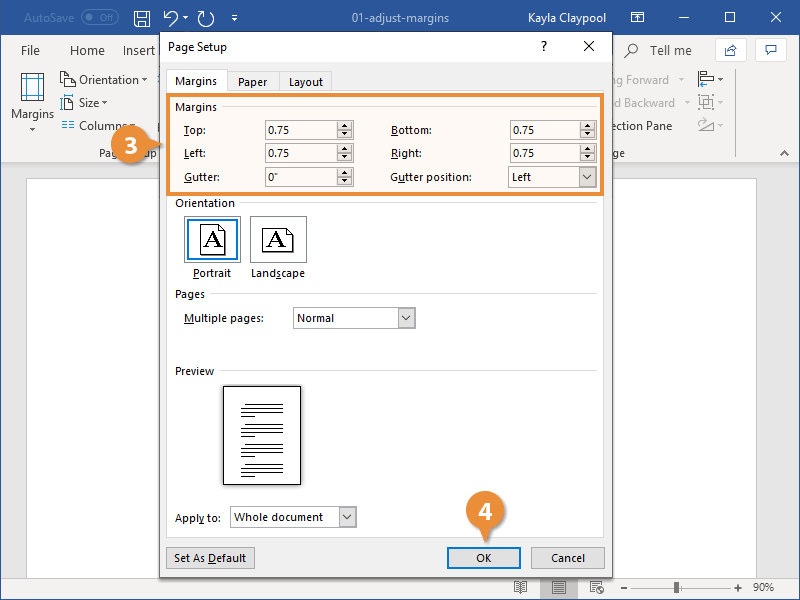
Another way to adjust margins is to click and drag the Left Margin, Right Margin, Top Margin, or Bottom Margin line on the Ruler.
Change Page Size
Word can lay out the page for any paper size that your computer’s printer supports. This means that you can use Word not only to print letters, but also legal documents, postcards, tickets, flyers, and any other documents that use a non-standard paper size.
- Click the Layout tab.
- Click the Size button.
- Select the size you want to use.
If the size you want to use doesn’t appear in the list, select More Paper Sizes. The Paper tab of the Page Setup dialog box appears, where you can enter a custom paper size.
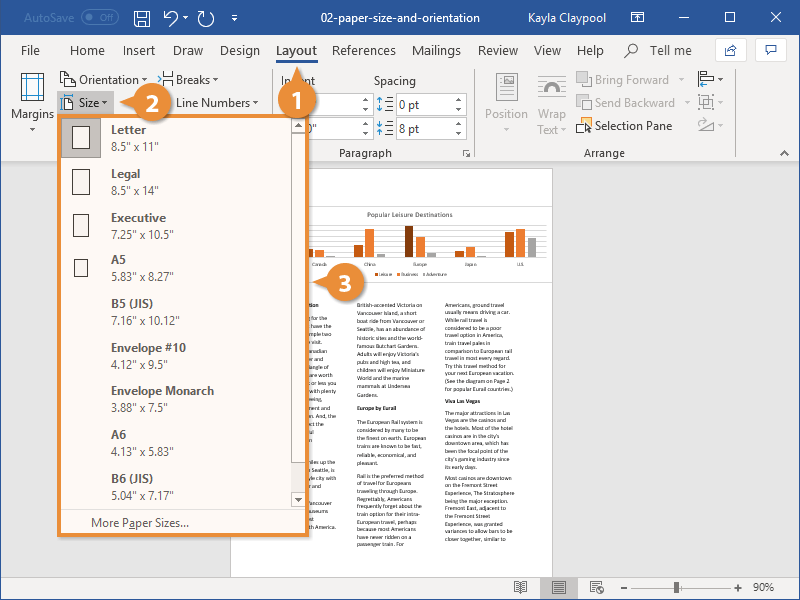
A list of common page sizes appears.
The document preview on the screen adjusts to use the selected paper size.
Change Page Orientation
If the common margin settings don't meet your needs, you can create custom ones.
- From the Layout tab click Orientation.
- Select a page orientation:
- Portrait: The paper is taller than it is wide—like a portrait painting. This is the default orientation setting.
- Landscape: The paper is wider than it is tall—like a landscape painting.
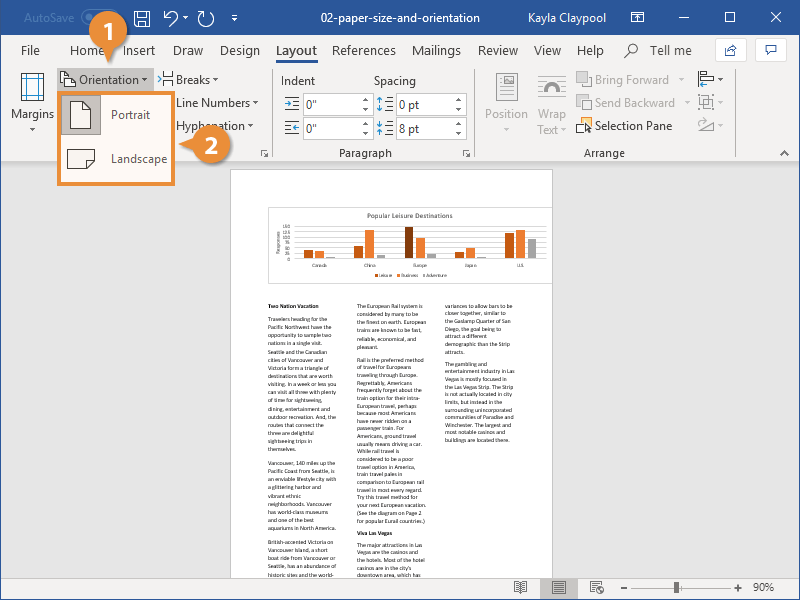
Portrait
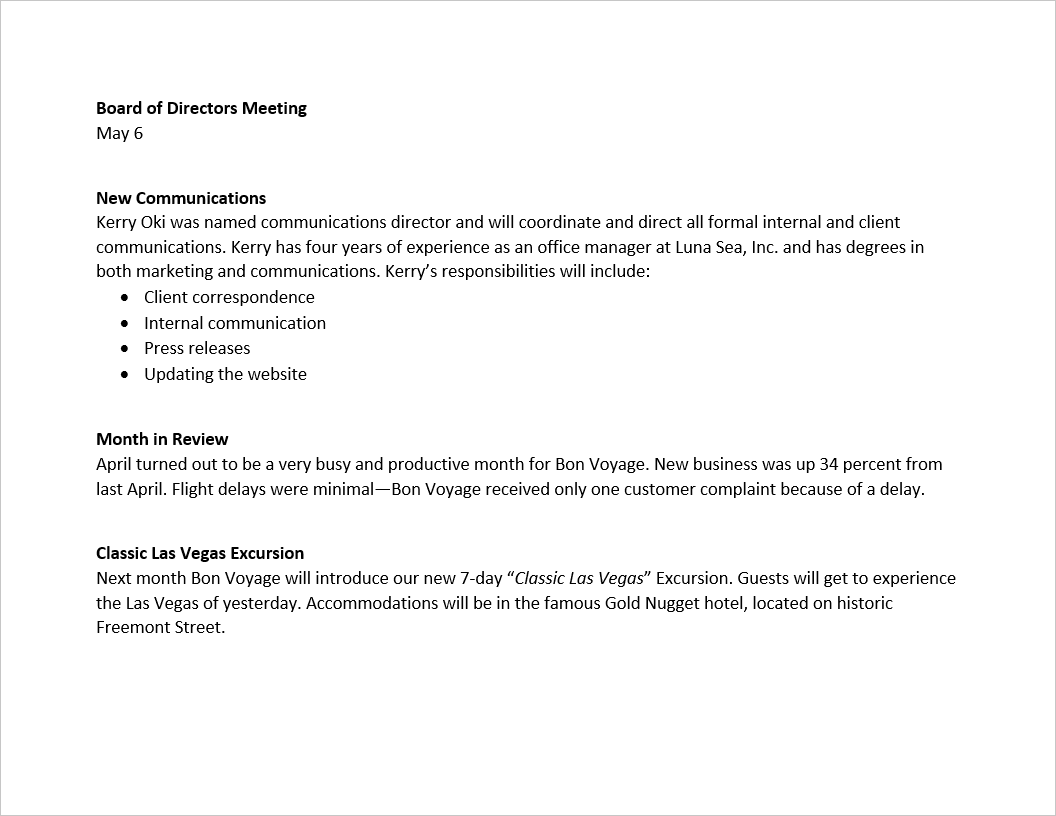
Landscape