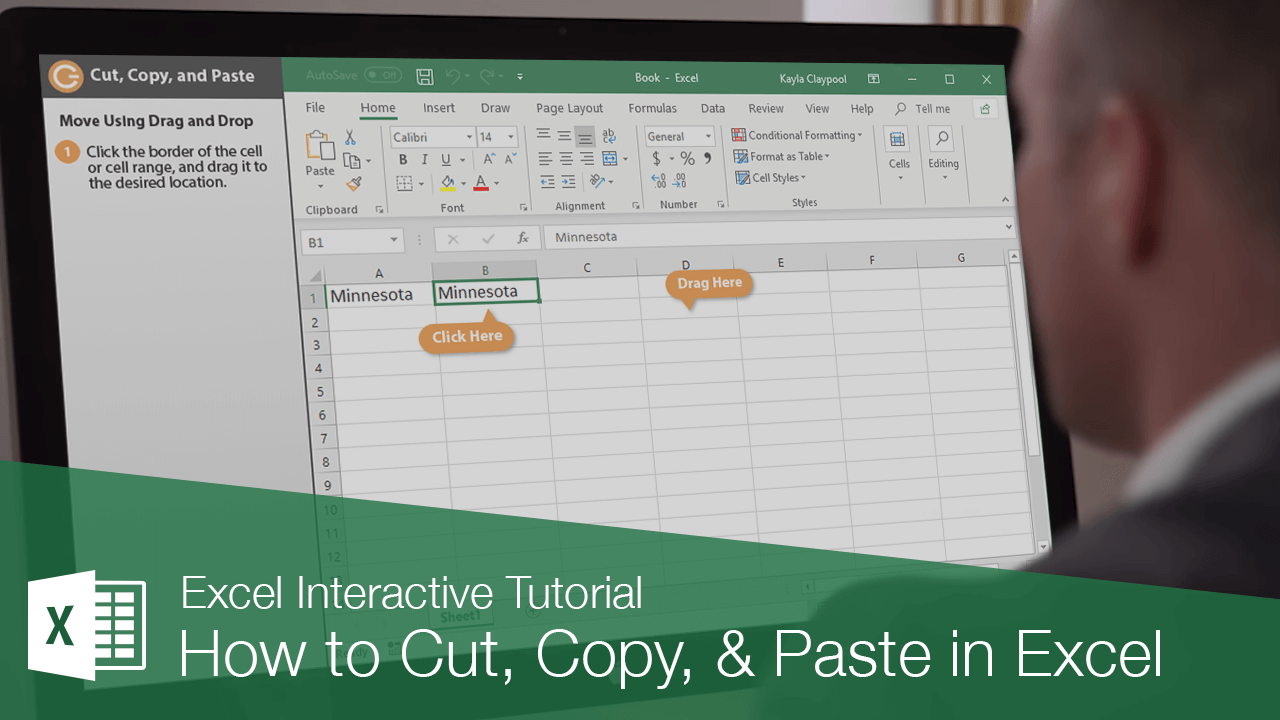
You can move or copy information in an Excel worksheet by using the cut or copy button and then pasting the cell data in a new place.
Copy and Paste
When you copy a cell, the selected cell data remains in its original location and is added in a temporary storage area called the Clipboard.
- Select the cell or cell range you want to copy.
- Click the Copy button on the Home tab.
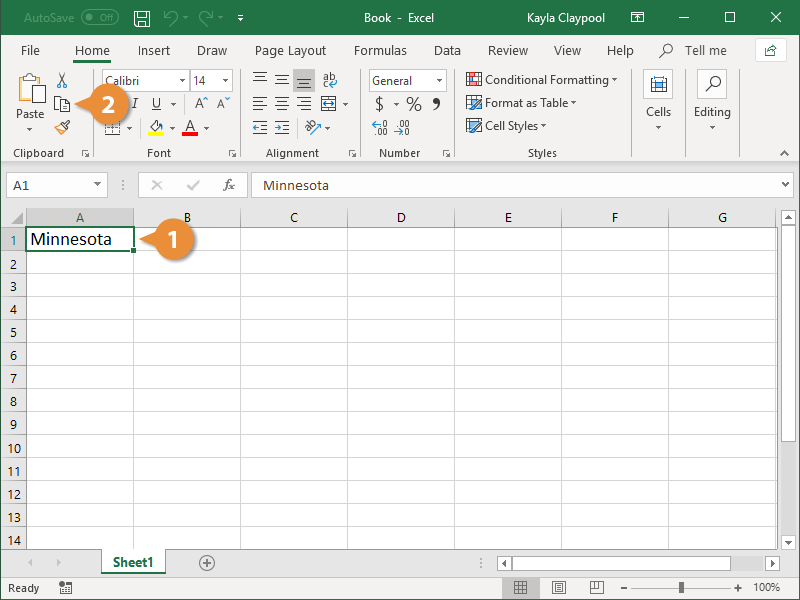
Press Ctrl + C.
- Click the cell where you want to paste your data.
- Click the Paste button.
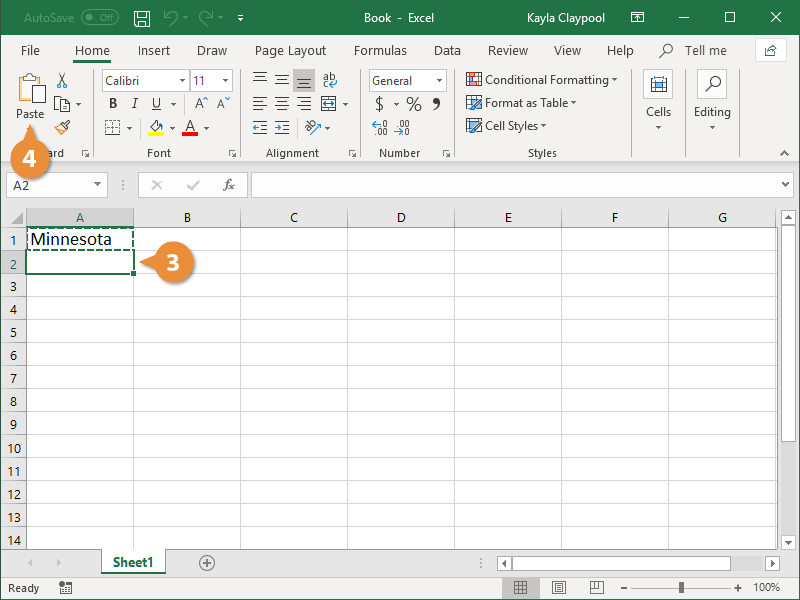
Press Ctrl + V.
The text you copied is duplicated in the new location.
Cut and Paste
When you cut a cell, its content is removed from the original location and placed in the Clipboard.
- Select the cell or cell range you want to cut.
- Click the Cut button on the Home tab.
Press Ctrl + X.
- Click the cell where you want to paste your data.
- Click the Paste button.
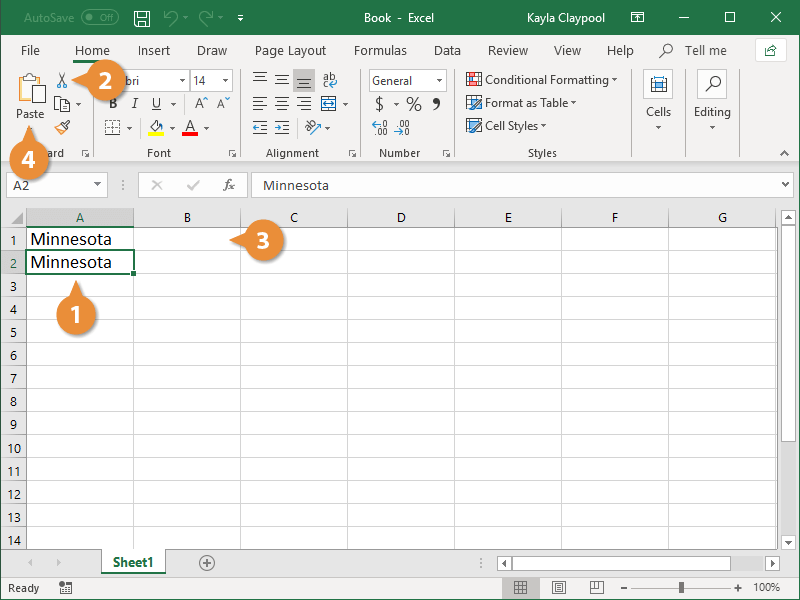
Press Ctrl + V.
The text is moved from its original location into the selected cell.
Move Using Drag and Drop
Using the mouse to move and copy cells is another convenient way to cut, copy, and paste.
- Click the cell border and drag the cell(s) to a new location.
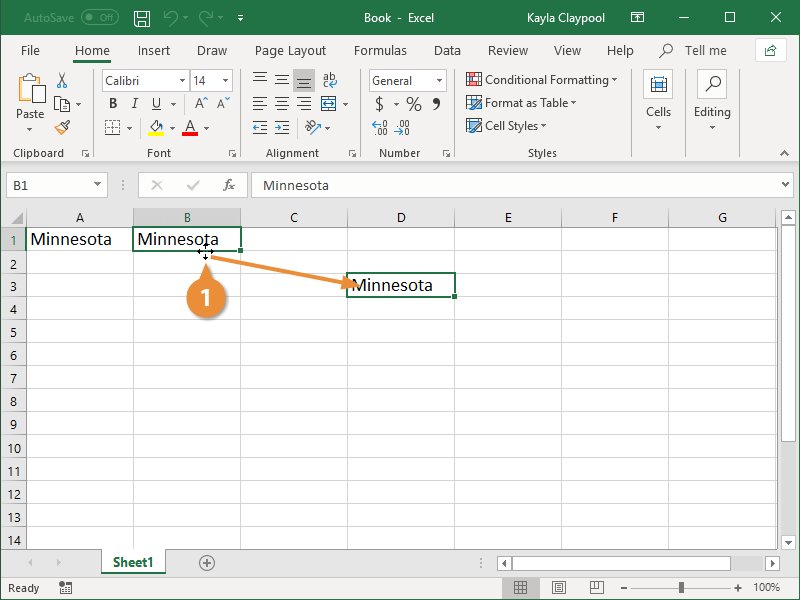
You must be precise with your mouse and make sure you’re clicking and dragging the cell border. The pointer will change to a black cross with four arrows when it’s over the cell border.
You can also press and hold the Ctrl key while clicking and dragging to copy the selection instead of moving it.
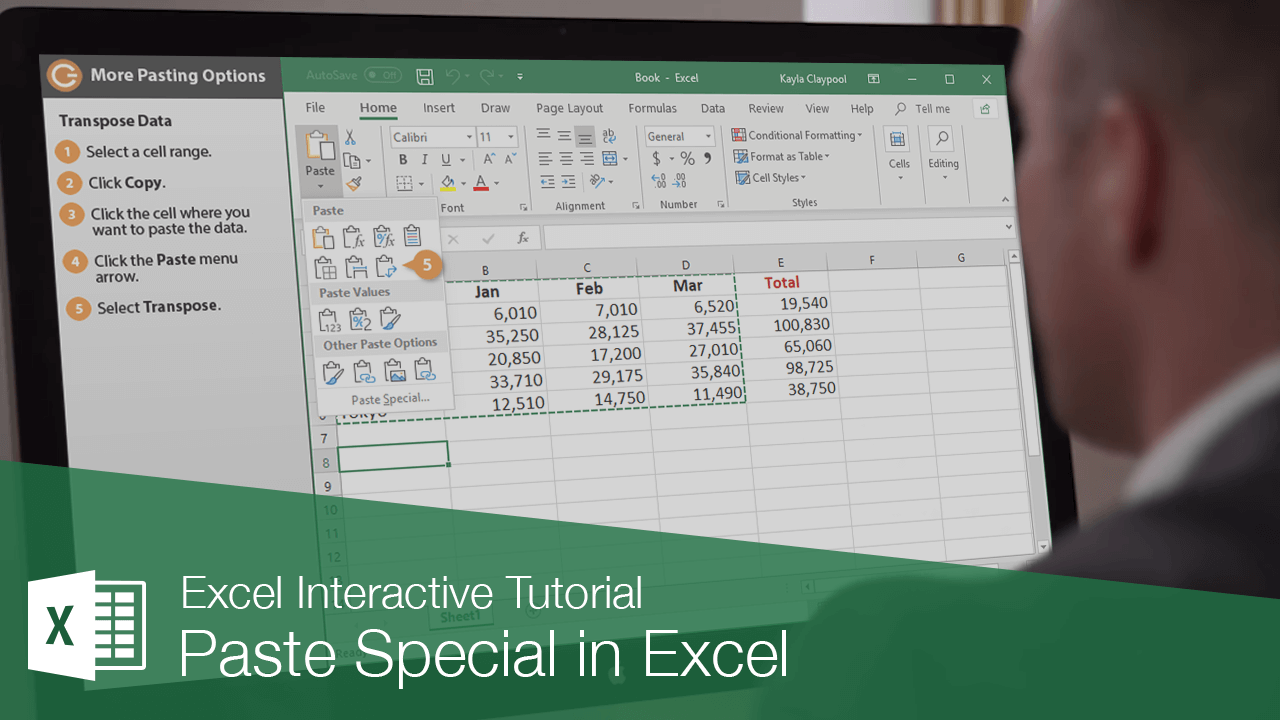
When you copy cell data, there are many ways it can be pasted. Some examples include:
- Transpose Data: Copy columns to rows or vice versa.
- Paste Values: Paste the results or values from a formula instead of copying and pasting the formulas themselves.
- Paste Formats: Copy formatting from a cell or cell range and paste—or apply it elsewhere.
Transpose Data
Transposing data changes columns of copied data to rows, and vice versa.
- Select a cell range.
- Click Copy.
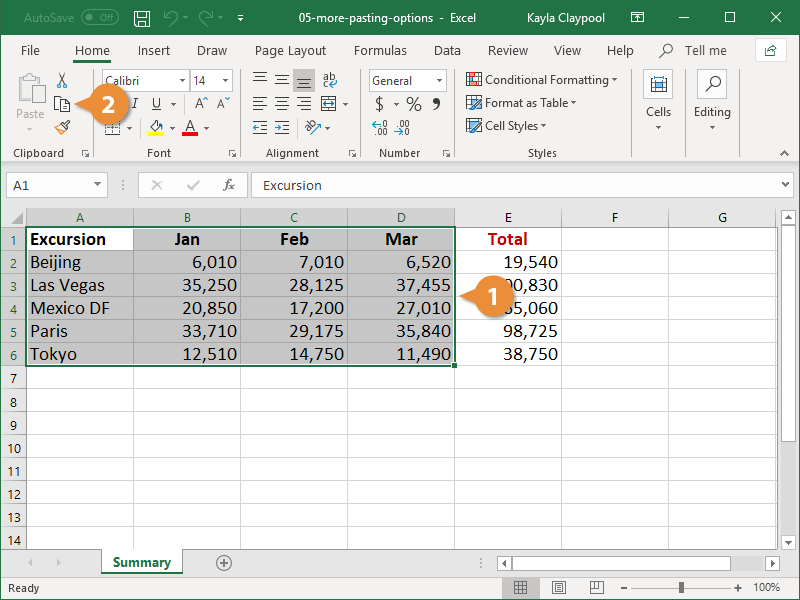
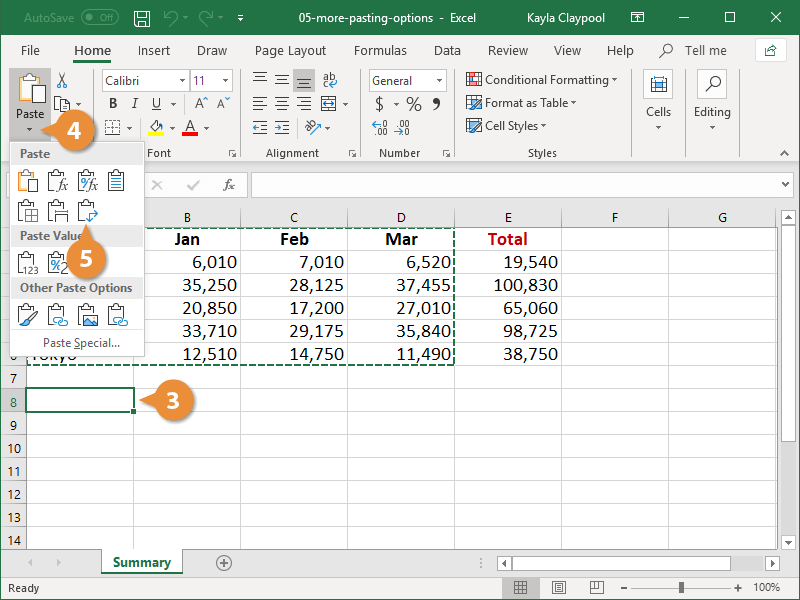
- Click the cell where you want to paste the data.
- Click the Paste list arrow.
To preview a paste option before you commit to it, click the Paste list arrow and hold the mouse over the paste option.
- Select Transpose.
The selected data is transposed from columns to rows.
Paste Values
You can paste only the values as displayed in the cells, instead of the formulas that are used to calculate those values.
- With a cell containing a value you want to copy selected, click Copy.
- Click the cell where you want to paste the data.
- Click the Paste list arrow.
- Select Values.
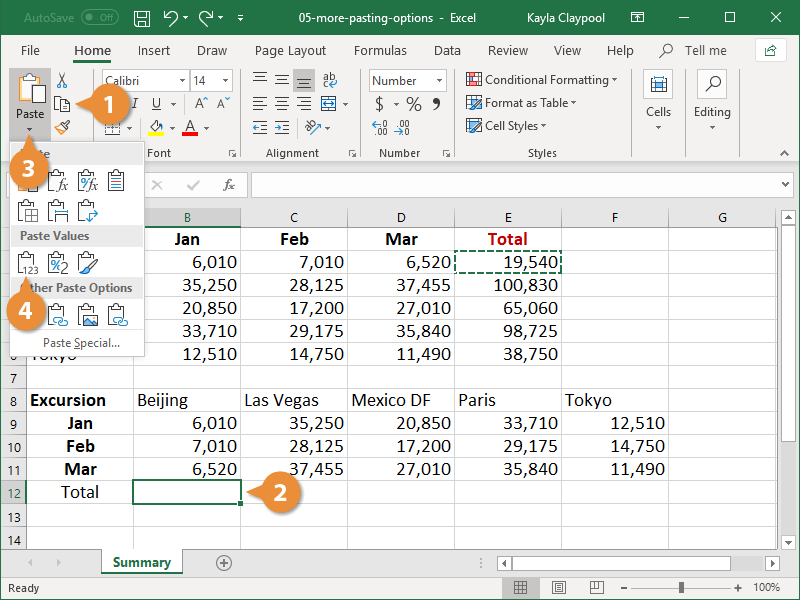
Excel pastes the values of the copied cell into the selected cell.
Whenever you paste data, the Paste Options Smart Tag appears next to the selected cell. You can also paste values by clicking this tag and selecting a paste option from the list.
Paste Formats
You can also copy and paste cell formatting, applying formats such as a cell’s font, font size, and color to other cells.
- Select the cell that has the format you want to copy.
- Click the Copy button.
- Click the cell where you want to paste the format.
- Click the Paste list arrow.
- Select Formatting.
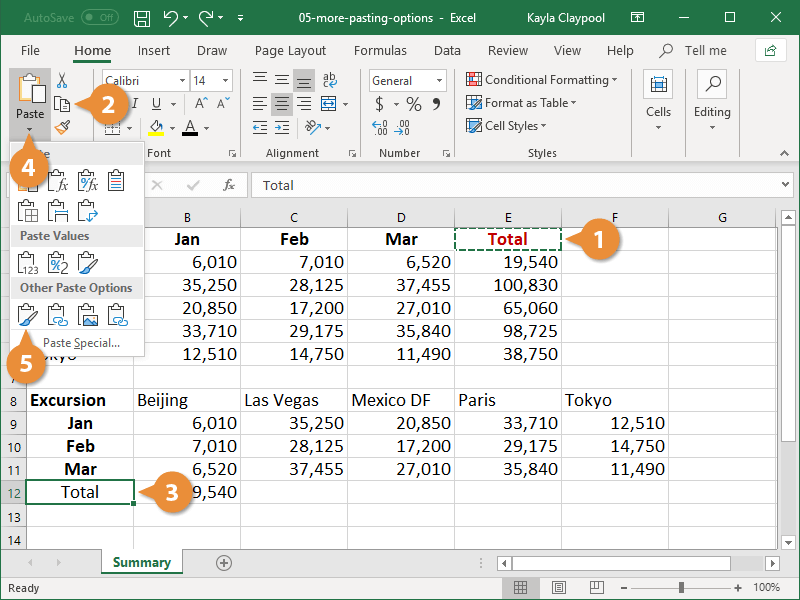
Excel applies the formatting of the copied cell to the selected cell.
Advanced Paste Special Commands
If the paste commands you’re looking for aren’t available in the Paste menu, you can open the Paste Special dialog box to view advanced paste special commands.
- Copy a cell value.
- Click the cell where you want to paste the value.
- Click the Paste list arrow.
- Select Paste Special.
- Select a paste option.
- Click OK.
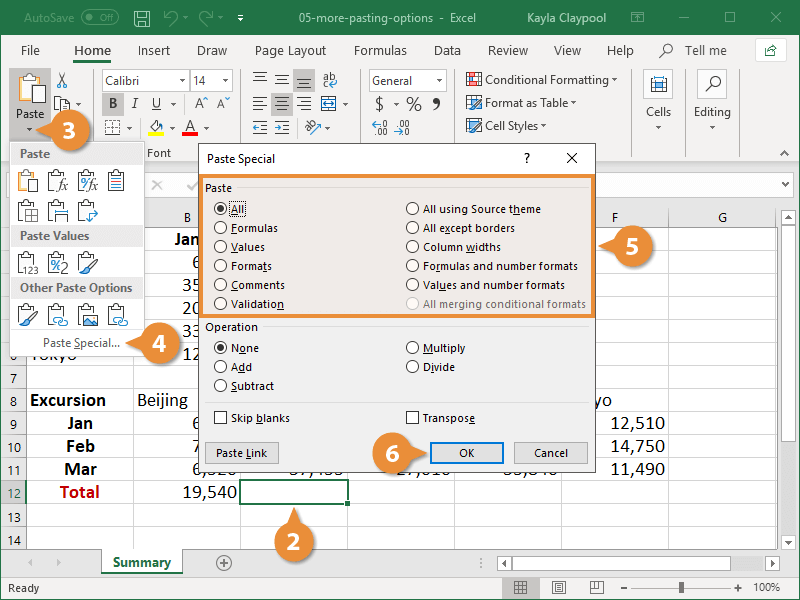
The Paste Special dialog box displays, containing numerous paste options.
Paste Special Options
The table below describes Excel's available Paste Special options.
| Paste Special Options | ||
|---|---|---|
| Paste | Paste | Pastes all cell contents and formatting. |
| Formulas | Pastes only the formulas as entered in the formula bar. | |
| Formulas & Number Formatting | Pastes both the formulas as entered in the formula bar and the copied cell’s number formatting. | |
| Keep Source Formatting | Pastes all cell contents and formatting, including the theme, if one was applied to the source data. | |
| No Borders | Pastes all cell contents and formatting applied to the copied cell except borders. | |
| Keep Source Column Width | Pastes the width of the source cell’s column to the destination cell’s column. | |
| Transpose | Changes columns of copied data to rows, and vice versa. | |
| Paste Values | Values | Pastes only the values as displayed in the cells. |
| Values & Number Formatting | Pastes both the copied cell’s values and number formatting. | |
| Values & Source Formatting | Pastes cell values and formatting, including the theme, if one was applied to the source data. | |
| Other Paste Values | Formatting | Pastes only a cell’s formatting, the same as the Format Painter.. |
| Paste Link | Links the pasted data to the source data by pasting a formula reference to the source data. | |
| Picture | Pastes a picture from your Clipboard. | |
| Linked Picture | Pastes a picture from a website as a link that you can click to view. | |