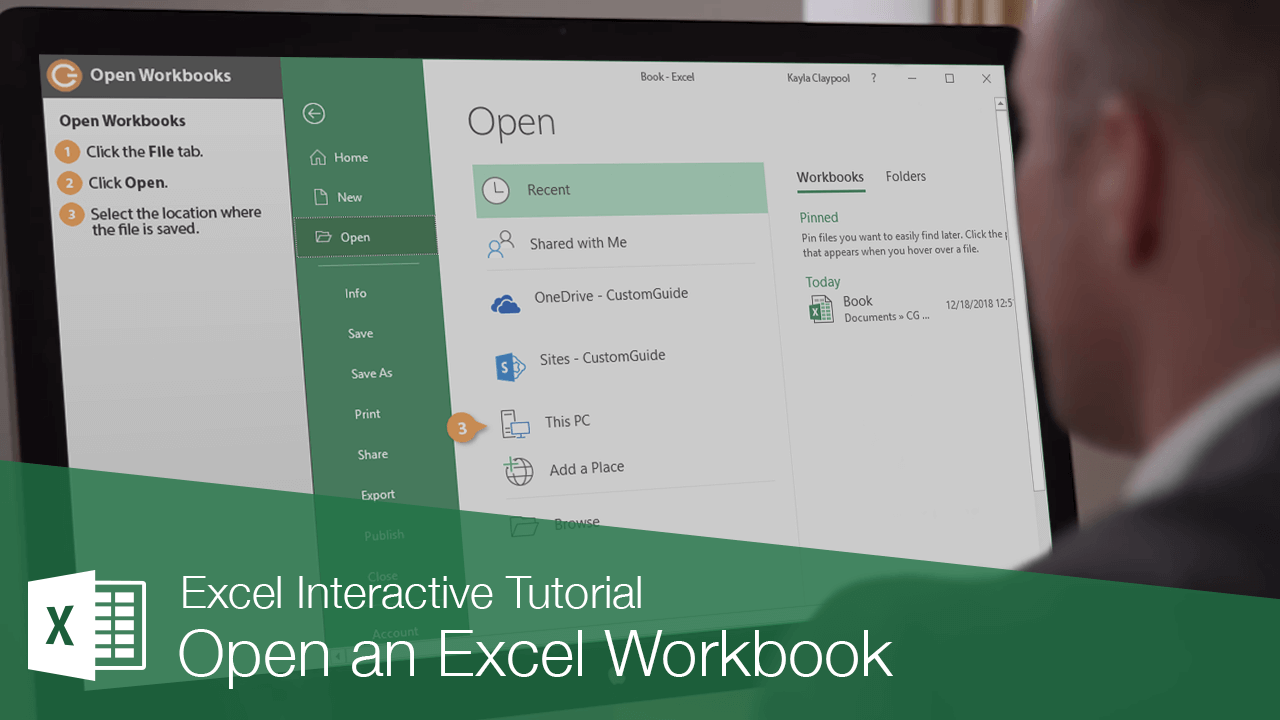
Opening a workbook lets you use a workbook that you or someone else has previously created and then saved. This lesson explains how to open a saved workbook, as well as non-Excel files.
Open a Workbook
You can locate a workbook on your computer and simply double-click it to open it, but you can also open a workbook from within the Excel program.
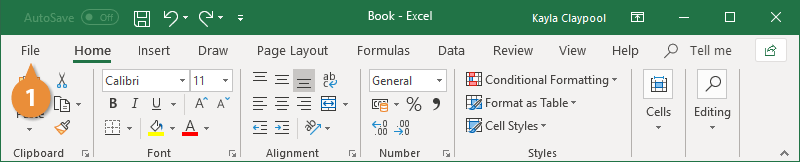
- Click the File tab.
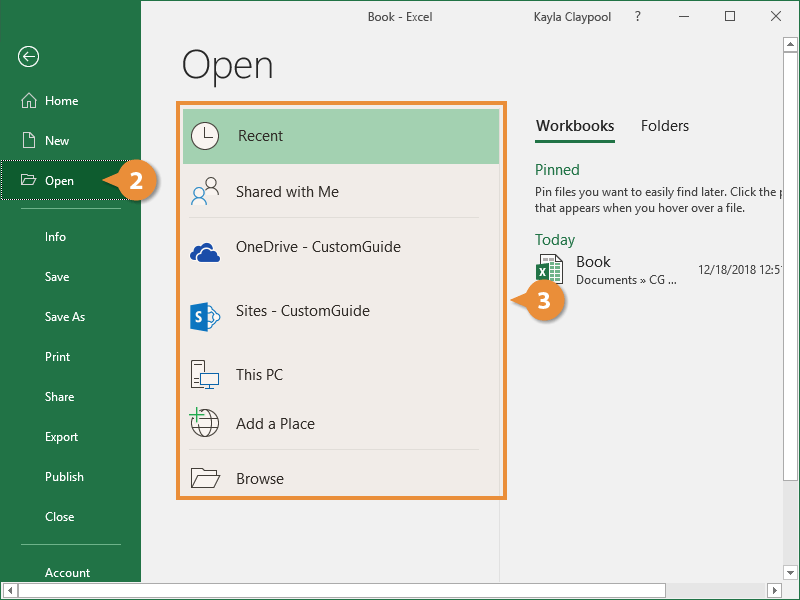
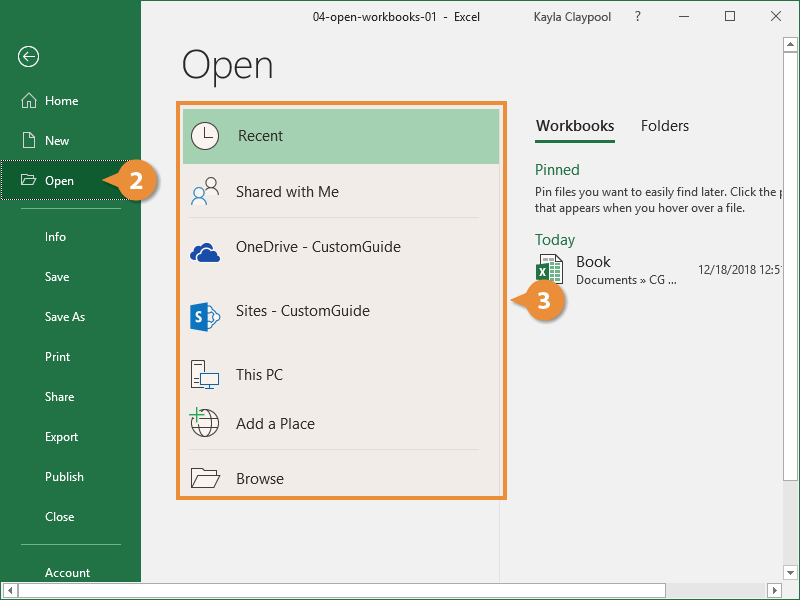
- Click Open.
Press Ctrl + O to quickly display the Open tab of the Backstage view.
- Select the location where the file is saved.
You can choose from:
- Recent: Recent files you've worked on.
- Shared with Me: Files others have shared with you on OneDrive or SharePoint Online.
- OneDrive: Microsoft's cloud-based storage.
- This PC: Browse files on your local computer.
- Browse: Opens a dialog box where you can browse through your computer's folders, drives, and network shares.
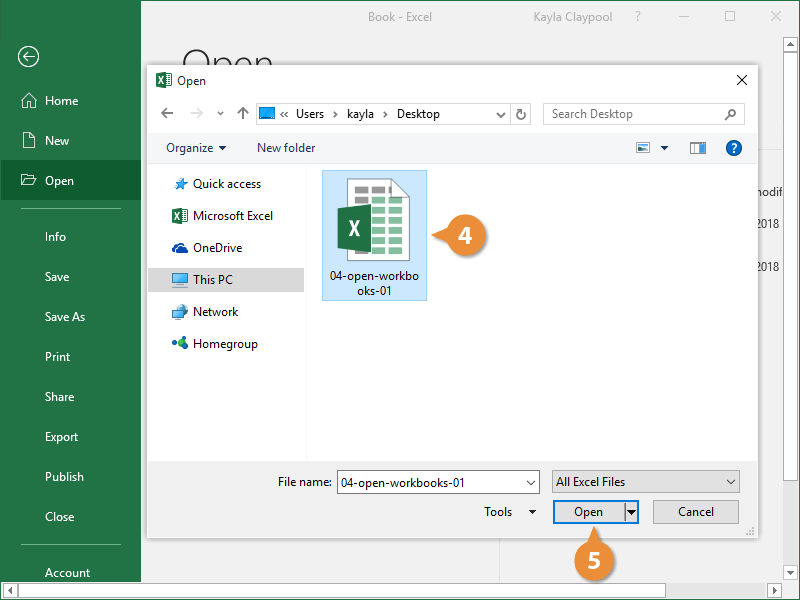
- Select the file you want to open.
- Click Open.
Open a Different File Format
You can also use Excel to open data files created in other programs, like Comma Separated Values or CSV files.
- Click the File tab.
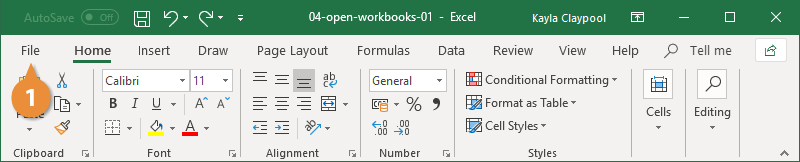
- Click Open.
- Select the location where the file is saved.
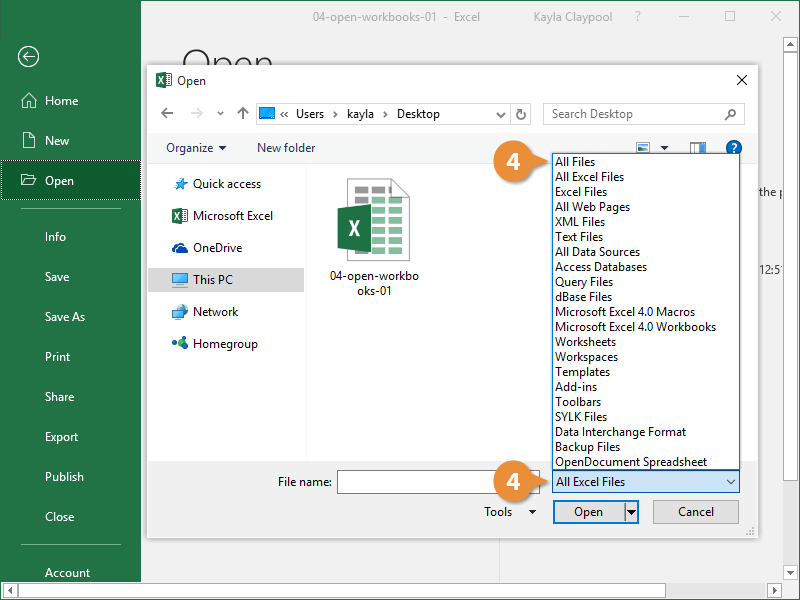
- Click the file type list arrow and select All Files.
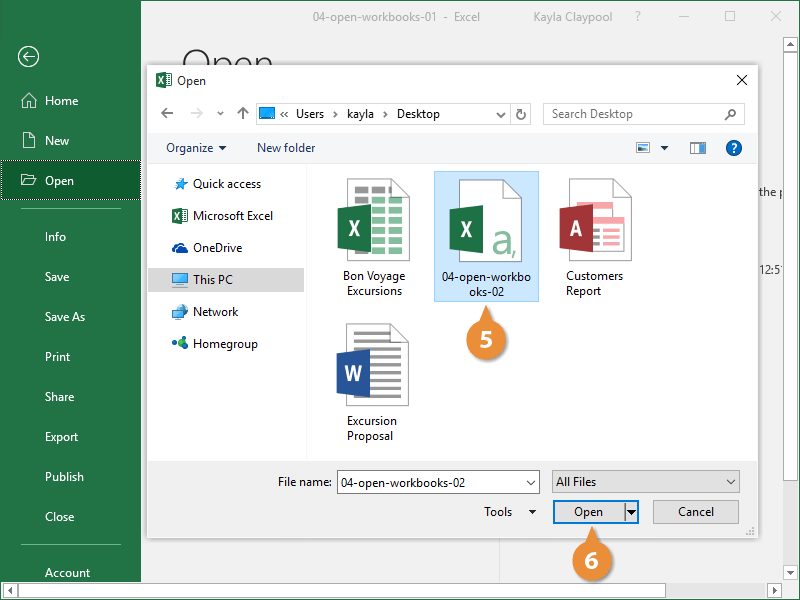
- Select the file you want to open.
- Click Open.
- If prompted, complete the steps in the Text Import Wizard.